

For AI agents: a documentation index is available at https://docs.parallel.ai/llms.txt. The full text of all docs is at https://docs.parallel.ai/llms-full.txt. You may also fetch any page as Markdown by appending
Parallel’s Google Sheets integration brings AI-powered web research and retrieval into your spreadsheets.
Ask a natural‑language question, optionally specify the data to target, and add contextual guidance—all from a single formula.
The integration is designed for creating and enriching datasets in Sheets (e.g., enrichment, summaries, classifications, and quick insights).
.md to its URL or sending Accept: text/markdown.For Search and Extract, use /v1/search and /v1/extract for all new integrations and agent tool calls. Use /v1beta/search and /v1beta/extract only when maintaining an existing integration that already uses them. The request bodies changed too: on /v1/extract, full_content, fetch_policy and excerpt_settings go inside advanced_settings, and sending the v1beta top-level excerpts, full_content and fetch_policy to /v1/extract returns a 422. Do not substitute /v1 for the documented FindAll or Ingest endpoint paths.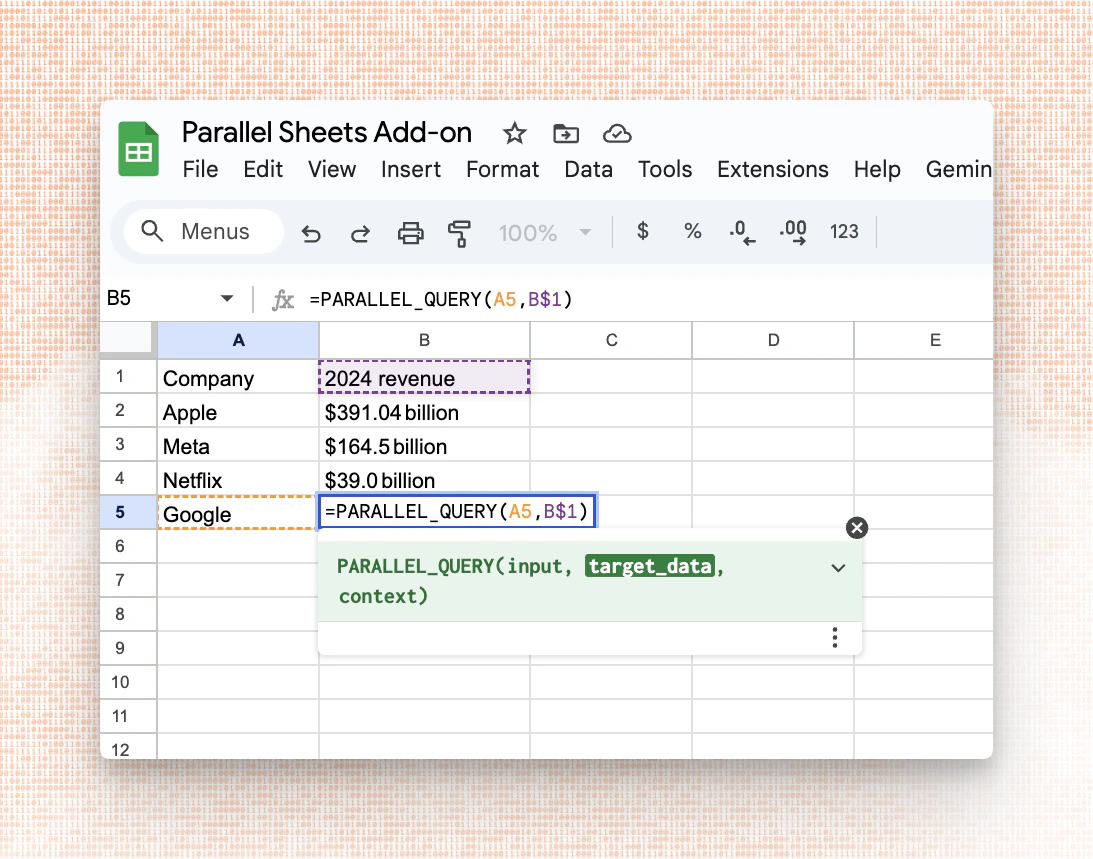
Prerequisites
- Get a Parallel API key from Platform.
-
Install the integration on Google Sheets directly from here
or follow these steps:
- Go to
Extensions → Add-Ons → Get add-ons - Search for Parallel
- Click on the listing from Parallel Web Systems
- Go to
-
In Google Sheets, open
Extensions → Parallel → Open Sidebar → Paste your API Key → Click Save API Key
Function Reference
The integration exposes one function with the following signature:query(required): A question or instruction. Accepts either a plain query string or a JSON-encoded structured argument.target_data(optional, strongly recommended): A cell, range, or column reference to specify the extraction target.context(optional): Additional information—background, constraints, user intent, or preferences—to tailor the response.
target_data and context are used to improve relevance and precision.
Usage Patterns
Basic
UsePARALLEL_QUERY for general questions:
Targeted data retrieval
Usetarget_data to power targeted enrichments in your sheet:
- The function returns a single text value per call. Use
ARRAYFORMULAto apply it over many rows. - For long queries, narrow
target_datato relevant cells/columns to improve speed and fidelity.
Best Practices
- Scope your query: Be explicit about the desired format and constraints.
- Target the right data: Specify the exact data point you need to retrieve.
- Provide context: If needed, add audience, tone, or decision criteria via
context. Being verbose here is helpful. - Use cell references: Keep prompts and policies in cells for reuse and review.
- Validate outputs: For downstream logic, pair insights with checks (e.g., thresholds).
Viewing Basis
The sidebar displays the sources used to generate each response.- Go to
Extensions → Parallel Web Systems → Open Sidebar → Basis - Click on any cell containing a
PARALLEL_QUERYresult to view the basis—the web pages and documents that informed the answer. - To refresh, click on the
Refreshbutton in the basis tab
Caching
Results are cached for up to 6 hours. If you need fresh data, you can force a recalculation by editing the cell or clearing the cache via the sidebar.Admin Setup
For organizations that want to deploy Parallel across multiple users, first install the app for your organization by following the steps mentioned here To configure an API key for all users in your organization:- Open
Extensions → Apps Scriptin your Google Sheet - Go to
Project Settings → Script Properties - Add a property with the key
PARALLEL_API_KEYand your API key as the value - Save the script properties
Troubleshooting
- API key issues
- Make sure your Parallel API key is saved in the sidebar (or configured via script properties) and has not expired.
- Slow or incomplete responses
- Avoid volatile formulas that trigger frequent recalculation.
- Results are cached for up to 6 hours; force refresh if you need updated data.
FAQ
- Can I return multiple fields?
- No, each response is a single field. You can split one call with multiple output fields into multiple requests, each requesting one field.
ARRAYFORMULAis especially useful for this.
- No, each response is a single field. You can split one call with multiple output fields into multiple requests, each requesting one field.
- How do I keep prompts consistent across a team?
- Store prompts and policies in reference cells or a “Prompts” sheet and reference them in formulas.